Authentication
Using Composio's default OAuth app
When using our default OAuth configuration:
- Don't add additional scopes - They may not be approved in our OAuth app
- Use only the pre-configured scopes provided
Using custom OAuth apps
Ensure your OAuth app is configured correctly:
- Redirect URL: Must match exactly what's configured in your OAuth provider
- Scopes: Auth config scopes must match your OAuth app configuration
- Credentials: Verify client ID and secret are correct
For setup guides by toolkit: OAuth Configuration Guides
Switching to a custom OAuth app
If you're moving from Composio-managed auth to your own OAuth app, existing connections are not affected. New connections will use your custom auth config. To fully migrate users, delete their old connected accounts and have them re-authenticate.
- Sessions: Pass
authConfigswhen callingcomposio.create(). See Switching auth configs (sessions). - Direct tool execution: Pass the new
authConfigIdwhen callinginitiate(). See Switching auth configs (direct).
Common authentication issues
- Invalid redirect URI: Check the callback URL matches exactly
- Scope mismatch: Ensure requested scopes are configured in both auth config and OAuth app
- Expired tokens: Try refreshing the connection
- Rate limits: Some providers limit authentication attempts
- Credentials showing as
REDACTED: The "Mask Connected Account Secrets" setting is enabled on your account, which redacts all sensitive credential data. Navigate to Settings → Project Settings → Project Configuration and disable "Mask Connected Account Secrets" to view actual values
Reporting authentication issues
When reporting to support, provide:
-
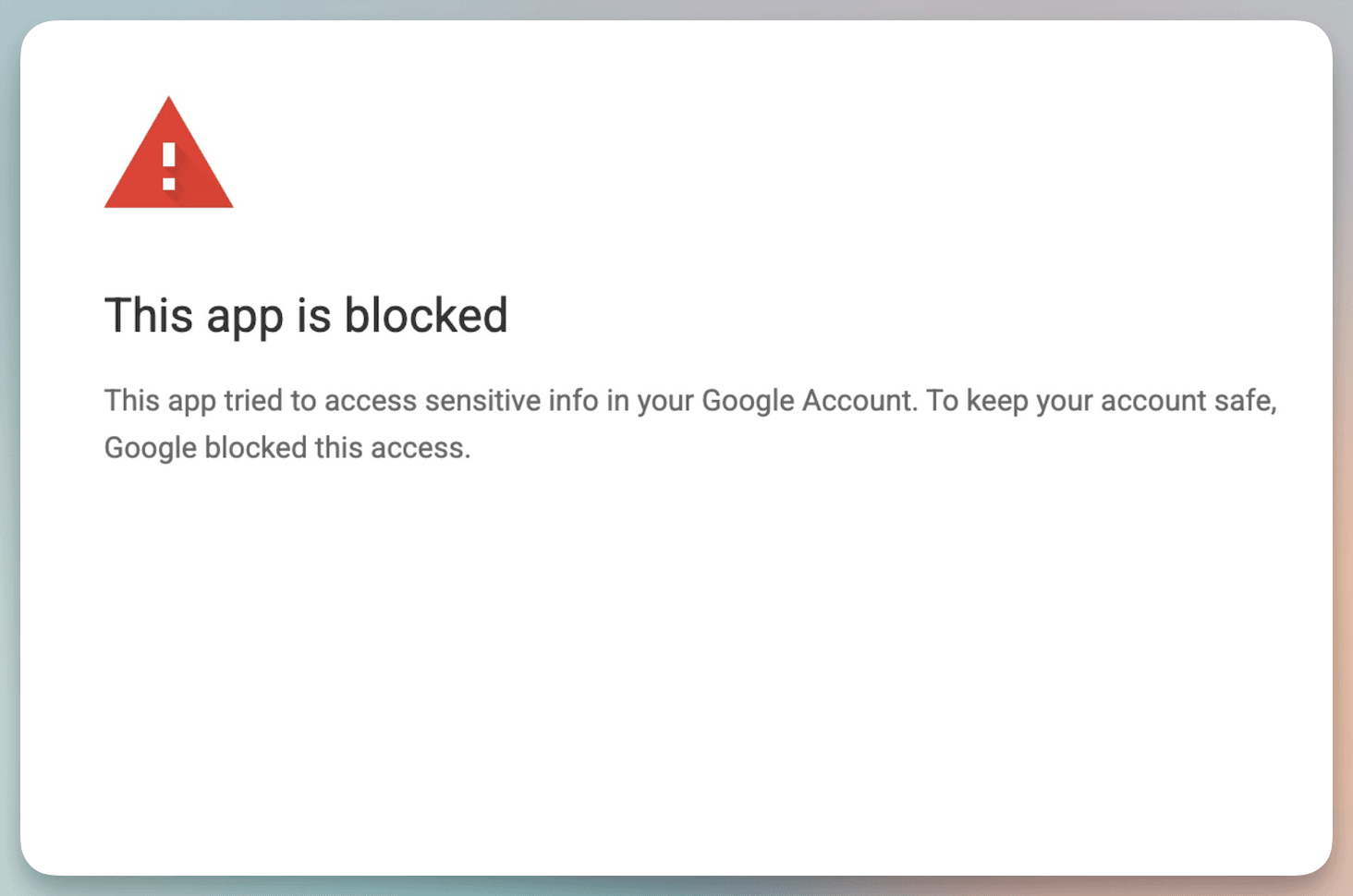
Error message: Complete error details and screenshots. For example:
-
Auth config and account IDs: Include the
authConfigIdused for the request and, if a connection already exists, theconnected_account_id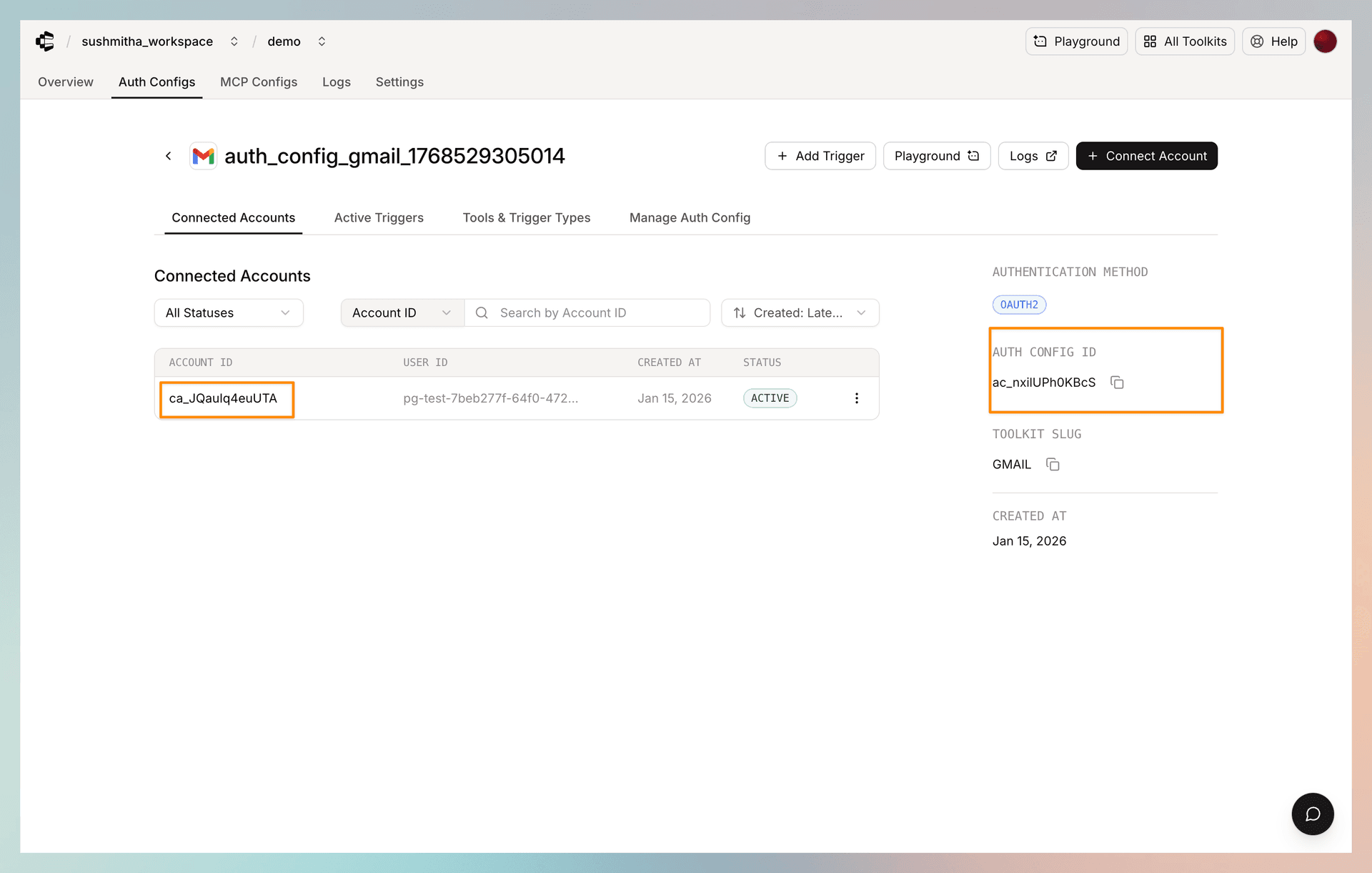
-
OAuth provider: Which service you're trying to connect
Getting help
- Email: support@composio.dev
- Discord: #support-form